

Printer Faxing 101 – Because Yes, People Still Fax

December 5, 2025
 0 views
 0 comments
AI Overview:
This blog explains why faxing from a printer faxing is still essential in 2025, especially for industries that require secure, compliant document transmission like healthcare, legal, and government. It covers how to check if your printer supports faxing and breaks down the three main methods: traditional landline faxing, faxing through a connected computer, and modern internet-based faxing without a phone line. The guide also includes simple troubleshooting tips for failed transmissions and answers common questions about fax security and color faxing. Overall, it shows how modern multifunction printers keep faxing practical, secure, and integrated into today’s office workflows.
Why Faxing from a Printer Still Matters in 2025
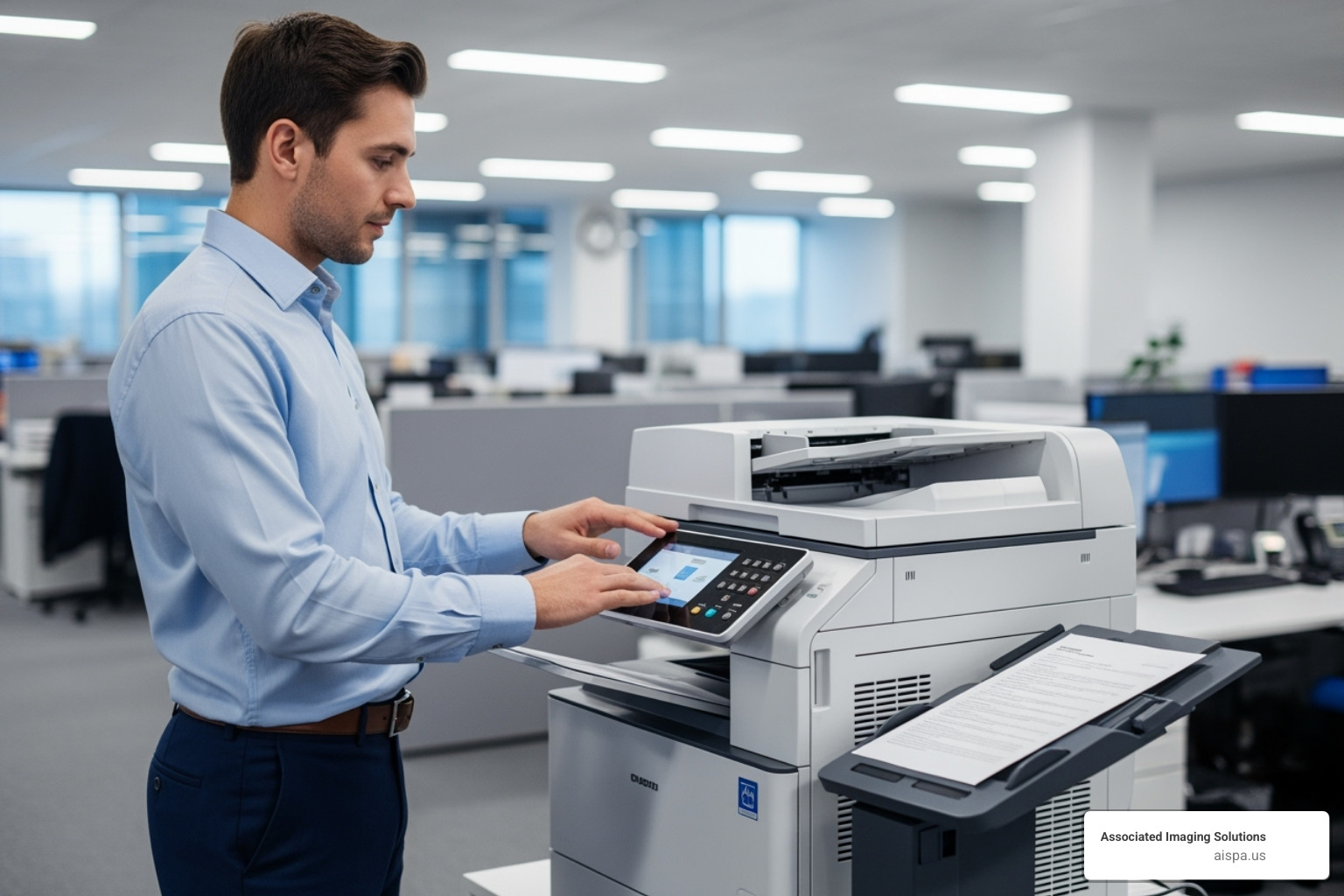
Faxing from a printer might sound outdated, but it’s surprisingly common in offices across Philadelphia and beyond. Many businesses still rely on fax for legal documents, medical records, and contracts because faxing is considered more secure than email or postal mail.
Here’s how to fax from your printer:
- Check if your printer has fax capability – Look for a “Fax” button and telephone jack
- Choose your method:
Traditional landline – Connect phone cord to printer’s 1-LINE port
Computer faxing – Use printer driver from Windows/Mac print dialog|
Internet faxing – Use scan-to-email with online fax service - Load document and dial the recipient’s fax number
- Press send and wait for confirmation
Modern multifunction printers offer multiple ways to send faxes, even without a traditional phone line. Whether you’re using a decades-old landline setup or cutting-edge internet faxing, your printer likely has you covered.
The reality is that certain industries – healthcare, legal, government – still require fax for compliance reasons. A business that fills orders can now receive them in a matter of minutes via fax, rather than waiting days for postal mail.
This guide covers three main methods for faxing from your printer, plus troubleshooting tips for common issues like delivery failures and connection problems.
First, Does Your Printer Have Fax Capabilities?
Before you start faxing from printer, you’ll need to figure out if your device actually has the right equipment. Not every printer can handle fax duties – some are built purely for printing and scanning, while others come loaded with all the bells and whistles.
The good news? Checking your printer’s fax capabilities is pretty straightforward once you know what to look for.
Start with the obvious clues right on your printer’s face. Most fax-capable printers proudly display a “Fax” button on their control panel, usually sitting right next to the “Copy” and “Scan” options. If you spot that button, you’re already halfway there.
Next, take a peek around back. Telephone jacks are the dead giveaway that your printer means business when it comes to faxing. You’ll typically see one or two small ports labeled something like “1-LINE” or “LINE” for the main connection, and possibly “PHONE” or “2-EXT” for connecting an additional phone handset.
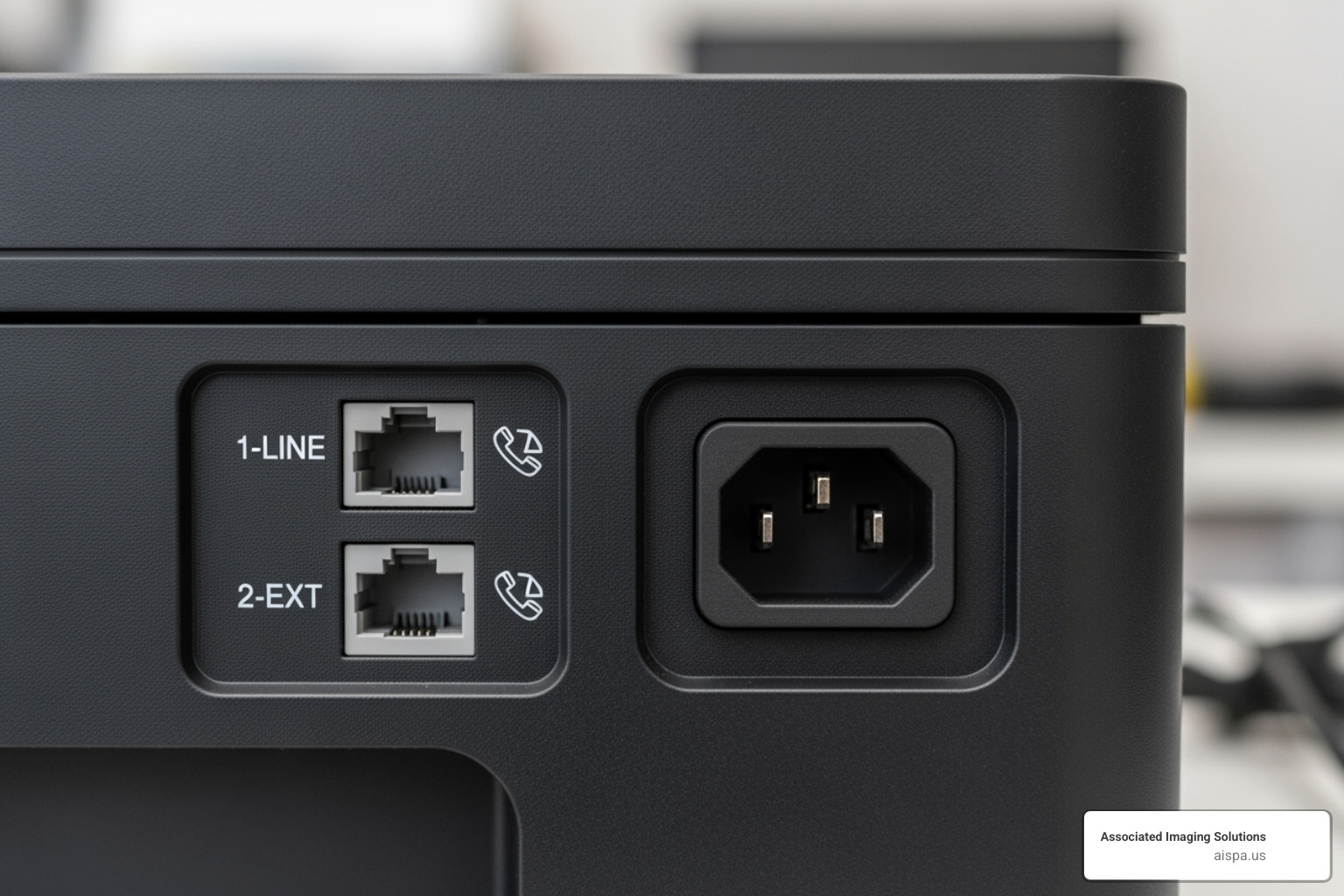
Still not sure? Your user manual is your best friend here. It’ll spell out exactly what your printer can and can’t do, plus walk you through the setup process if faxing is supported. We know, we know – nobody loves digging through manuals, but this one’s worth it.
Here’s something interesting: some printers that don’t come with built-in fax capabilities can actually be upgraded with fax kit add-ons. This isn’t super common with everyday consumer printers, but certain business-grade models offer this flexibility.
Multifunction Printers (MFPs) are your golden ticket for integrated faxing capabilities. These workhorses are designed to handle everything your office throws at them – printing, copying, scanning, and yes, faxing – all from one sleek machine. If you’re curious about what else an MFP can bring to your business, check out our detailed guide: What is an MFP Printer?
Don’t have those telltale fax buttons and phone jacks? Don’t worry – you’re not out of luck. Modern technology has some clever workarounds that we’ll dive into with Method 3, so you can still get those important documents where they need to go.
How to Fax from a Printer: The 3 Main Methods
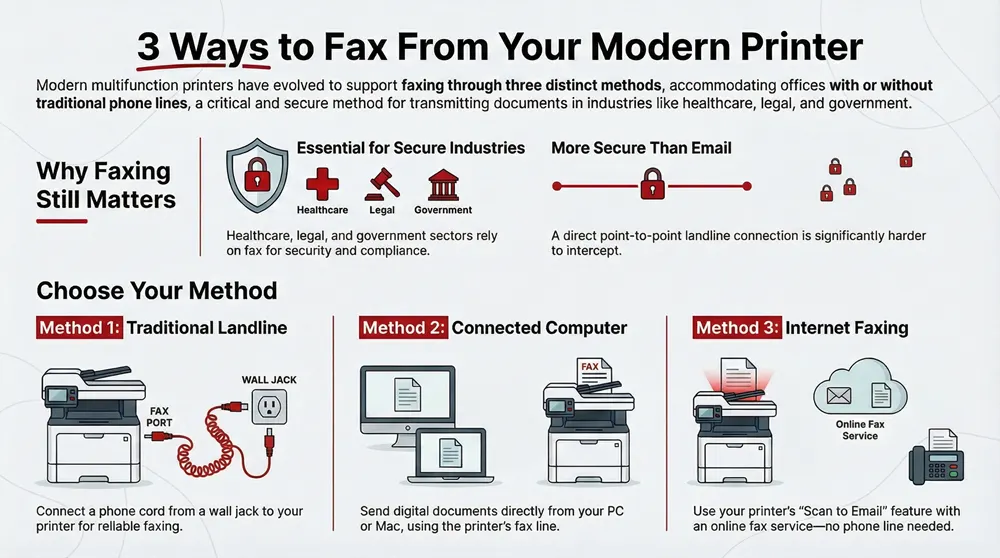
Ready to send your first fax? Great! You’ve got three solid options, each with its own perks. Think of it like choosing between driving, flying, or taking the train – they’ll all get you there, but the best choice depends on what you’ve got available and where you’re headed.
Method 1: Traditional Landline Faxing
This is your grandfather’s way of faxing, and honestly? It still works like a charm. There’s something satisfying about that classic “beep-boop-beep” sound of a fax connecting. If you’ve got a landline and want rock-solid reliability, this method is your best friend.
Getting set up is straightforward. You’ll need your fax-capable printer, a traditional landline connection, and a two-wire phone cord (most printers include one, but they’re cheap to replace if yours went missing).
First, connect your landline by finding the “1-LINE” or “LINE” port on your printer’s back panel. Plug your phone cord here, then connect the other end to your wall jack. If you’re sharing the line with an answering machine, that usually connects to the “2-EXT” or “PHONE” port on your printer.
Before sending your first fax, set up your fax header through your printer’s menu. This puts your name, company, and fax number at the top of every page you send. Trust me, recipients appreciate knowing who’s sending them documents at 2 PM on a Tuesday.
The actual faxing process is pretty intuitive. Load your documents face-down on the scanner glass or face-up in the document feeder. Hit that “Fax” button on your control panel, punch in the recipient’s 10-digit fax number, and press “Send” or “Start.”
Your printer will do its thing – scanning, dialing, connecting, transmitting – and then give you a confirmation report. Keep this! It’s your proof that the fax went through successfully. If something goes wrong, this report helps diagnose the problem.
Having printer troubles beyond faxing? Our team provides comprehensive Printer Repair and Maintenance services to keep your office equipment running smoothly.
Method 2: Faxing from printer using a connected computer (PC & Mac)
Here’s where things get modern while still being traditional. Computer-based faxing lets you send documents directly from your PC or Mac without printing them first. You’re still using your printer’s fax modem and that landline connection, but you’re skipping the paper step entirely.
You’ll need your fax-capable printer connected to your computer (USB, Ethernet, or Wi-Fi all work), plus the printer drivers installed. Don’t worry – most modern printers handle this automatically when you first connect them.
Windows users have it pretty straightforward. Open any document you want to fax, hit “File” then “Print,” and look for a printer option with “Fax” in the name. It might say something like “HP Officejet Pro Fax” or “Canon MFP PC Fax.” This is actually a virtual fax printer that routes your document through your printer’s fax hardware.
Click into the printer properties or preferences, and you’ll find options to enter the recipient’s fax number, add a cover page, and choose color or black-and-white transmission. Some software even lets you manage an address book and track your fax history – pretty handy for busy offices.
Mac users get an even cleaner experience. The fax functionality is baked right into macOS. Open your document, select “Print,” choose your multifunction printer from the dropdown, then look for “Fax Information” in the options. Enter the recipient’s number, add a cover page if you want, and click “Fax.”
Here’s something cool for Mac offices: network fax sharing. If you’re running macOS 10.5 or later, you can share your printer’s fax capabilities across your local network. Just enable “Share this fax on the network” in your Printer settings, and everyone in the office can send faxes through your shared printer. Pretty neat for small businesses!
Want to dive deeper into what today’s multifunction printers can do? Check out our comprehensive Top MFP Printers Reviewed guide.
Method 3: Modern alternatives for faxing from printer without a phone line
No landline? No problem! Welcome to the future of faxing from printer – internet-based solutions that use your printer’s scanning capabilities combined with online fax services. It’s like having a traditional fax machine, but smarter and more flexible.
This method revolves around your printer’s “Scan to Email” feature. Instead of scanning to a regular email address, you’re scanning to a special email that gets converted into a traditional fax by an online service. Pretty clever, right?
Here’s how the magic happens. First, sign up with an online fax service – they’ll give you a dedicated fax number and handle all the phone line stuff on their end. When you want to send a fax, place your document on the scanner and select “Scan to Email” from your printer’s control panel.
Instead of typing a regular email address, you’ll enter a special format provided by your fax service – usually something like the recipient’s fax number followed by “@yourfaxservice.com.” Your printer scans the document, emails it to the service, and they convert it into a traditional fax that gets delivered to the recipient’s fax machine.
Receiving faxes gets even cooler with “Email to Print” features. Many modern printers can be assigned their own email addresses through services like HP ePrint. Configure your online fax service to send incoming faxes to your printer’s email address, and boom – faxes automatically print when they arrive. No more checking email or logging into portals.
The benefits are pretty compelling. You’re cutting the landline cord entirely while going eco-friendly by reducing paper waste. You can send and receive faxes from anywhere with internet access, and reputable services use encryption to keep your documents secure. Many integrate with cloud storage too, so you can fax documents straight from Google Drive or save received faxes to Dropbox.
For Philadelphia businesses looking to modernize their document workflow, this approach often proves more cost-effective than maintaining dedicated fax lines. Plus, you’re not tied to your physical location anymore.
Ready to explore internet faxing in detail? Our comprehensive guide Fax from Printer Over Internet: Easy Guide walks you through everything you need to know.
Troubleshooting Common Faxing from Printer Issues
Let’s be honest – faxing from printer doesn’t always go smoothly on the first try. Don’t worry, though! Most fax hiccups are surprisingly simple to fix once you know what to look for.
When your fax fails to send, your printer usually gives you clues about what went wrong. Check the fax report first – it’s like your printer’s way of saying “here’s what happened.” These reports often include specific error codes that you can look up on your printer manufacturer’s website for detailed explanations.
The most embarrassing (and common) culprit? A simple typo in the fax number. Double-check that recipient’s number, including area codes. We’ve all been there – frantically troubleshooting only to realize we missed a digit.
Sometimes the problem isn’t on your end at all. The recipient’s machine might be busy, out of paper, or simply turned off. If you’re getting busy signals or hearing a human voice answer, try again later or verify the number.
Line quality issues can really mess with fax transmission. Static, crackling, or frequent disconnections will disrupt your fax signals. If your regular phone calls sound fuzzy on the same line, contact your phone service provider.
Here’s where things get technical – if you have DSL internet on the same phone line, you might need a DSL filter. Connect it between your wall jack and printer to prevent your internet from interfering with your fax signals. Think of it as giving each service its own lane on the highway.
VoIP faxing (faxing over internet phone service) can be tricky because internet connections sometimes lose small bits of data. For better success with VoIP, you’ll need an Analog Telephone Adapter (ATA) to connect your printer. Enable Error Correction Mode (ECM) in your printer settings if available, and slow down the transmission speed to give the data more time to get through properly.
Office phone systems (called PBX systems) require special adapters to work with fax machines. Your printer’s phone port needs to connect to a designated fax port on the PBX adapter, not directly to the system.
Conflicting phone services like call waiting or voicemail can interrupt fax transmission. If your voicemail always picks up, your printer can’t automatically receive faxes – you’ll need to manually answer and transfer the call to your fax function.
Want to test if everything’s working? Many manufacturers offer test fax services. You can send a test fax and they’ll send one back to confirm your setup is working properly.
If you’re still struggling with fax issues and you’re in the Philadelphia area or anywhere else in Pennsylvania, our experienced team provides comprehensive Office Equipment Repair Services and can help troubleshoot even the most stubborn faxing problems.
Frequently Asked Questions about Printer Faxing
We get quite a few questions about faxing from printer technology, especially as businesses try to balance modern workflows with traditional requirements. Let’s tackle the most common concerns we hear from our clients.
Can I fax from my printer if I only have internet service?
Absolutely! This is one of the most frequent questions we receive, and the answer is a resounding yes. You have several excellent options even without a traditional landline.
The most straightforward approach is using your printer's "Scan to Email" feature alongside an online fax service. Simply scan your document on your printer, then email the scanned file to a special address provided by your online fax service. The service handles the conversion and sends it out as a traditional fax - pretty clever, right?
Many printer manufacturers also offer mobile apps that support internet faxing. These apps connect directly to your printer and send faxes over your internet connection, completely bypassing the need for phone lines. It's perfect for modern offices that have acceptd the digital change but still need to accommodate clients who prefer fax communication.
Is faxing from a printer secure?
This is a great question, especially given today's cybersecurity concerns. Faxing over a traditional landline is generally considered one of the most secure document transmission methods available. The direct point-to-point connection makes interception significantly more difficult than email or other digital methods.
When you're using internet-based faxing methods, security depends heavily on your service provider. We always recommend choosing reputable online fax services that use strong encryption protocols to protect your data during transmission. Look for services that advertise HIPAA compliance or similar security certifications - this ensures your sensitive business documents receive the protection they deserve.
The bottom line? Traditional landline faxing offers excellent security, while internet-based solutions can be equally secure when you choose the right provider.
Why can't I send a color fax?
Here's something that surprises many people: sending a color fax requires both machines to support color faxing standards. Your modern multifunction printer might be perfectly capable of scanning and transmitting in beautiful color, but if the recipient's machine is an older black-and-white model, your vibrant presentation will arrive looking like yesterday's newspaper.
When the receiving fax machine only supports monochrome, it automatically converts your color document to grayscale. So if your carefully crafted color charts and graphs lose their impact, it's likely due to the recipient's equipment limitations, not any issue with your printer setup.
This is actually one reason why many businesses are gravitating toward internet-based fax solutions - they often provide better compatibility and can handle color documents more reliably than traditional fax-to-fax transmission.
Conclusion: Integrating Faxing into Your Modern Workflow
Faxing from printer technology has evolved to meet today’s business needs. Whether you’re connecting through a traditional landline, sending documents directly from your computer, or embracing internet-based solutions, your multifunction printer remains a powerful hub for secure document transmission.
The truth is, faxing isn’t going anywhere anytime soon. Industries like healthcare, legal services, and government continue to rely on fax technology for its proven security and compliance benefits. When you combine this necessity with modern workflow efficiency, the result is a streamlined document management system that serves both traditional and contemporary business needs.
For businesses across Pennsylvania – from busy Philadelphia offices to smaller operations in Lancaster or Erie – optimizing your entire document workflow makes the difference between running smoothly and constantly fighting paper jams (literally and figuratively). This means looking beyond just printing to consider how scanning, copying, and secure faxing all work together.
At Associated Imaging Solutions, we’ve seen how the right document management strategy transforms daily operations. Our local expertise combined with cutting-edge technology helps businesses create cohesive systems where every piece of equipment works in harmony. When your printer, scanner, and fax capabilities are properly integrated, you’re not just sending documents – you’re building a foundation for efficient business communication.
The beauty of modern multifunction printers is their ability to adapt to your specific workflow needs. Whether you’re a law firm that needs rock-solid landline faxing for court documents, a medical practice leveraging internet faxing for patient records, or a growing business looking to eliminate multiple devices, there’s a solution that fits.
If you’re ready to take your document workflow to the next level, consider exploring comprehensive solutions that address all your office needs. Our Managed Print Services (MPS) approach helps businesses integrate printing, scanning, and faxing into one efficient, cost-effective system that actually makes sense.
Ready to see what modern document management can do for your business? Explore our Copiers & Printers solutions to improve your office capabilities and find how the right equipment can transform your daily operations from chaotic to seamless.
Related Posts
— Managed Print Services in Delaware Valley

— Managed Print Services for Philadelphia Businesses