

Drive Your Printer Crazy (in a Good Way) with These Print Drivers

September 24, 2025
 0 views
 0 comments
AI Overview:
This blog explains how print drivers act as the software “translator” between your computer and printer. It breaks down the main driver types (PCL, PostScript, universal, and manufacturer-specific), how they affect print speed and quality, and which ones to use for different tasks.
Readers learn how to install and update drivers correctly, how to fix common issues like “print driver unavailable,” and why outdated drivers can cause errors, security risks, and slow printing. The article emphasizes that choosing the right driver—and keeping it properly maintained—leads to smoother workflows, better print quality, and fewer headaches in any office environment.
Why Print Drivers Are Your Printer’s Best Friend
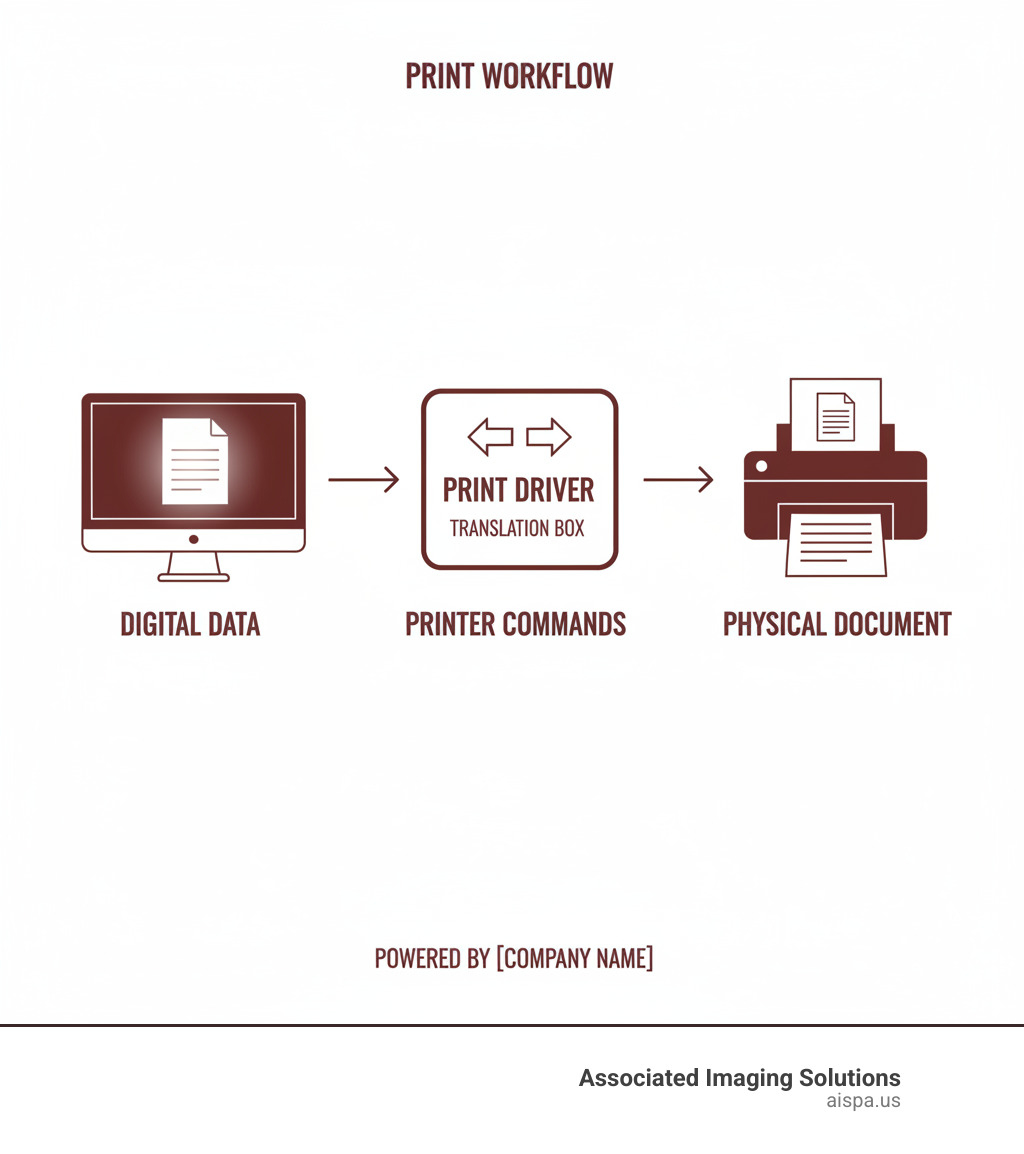
Print drivers are the essential software that lets your computer talk to your printer. Think of them as translators that convert your digital documents into instructions your printer can understand, handling everything from basic text to complex color graphics. Without the right driver, your printer is just an expensive paperweight.
Quick Answer: What You Need to Know About Print Drivers
- Definition: Software that translates computer data into printer-readable instructions
- Types: PCL (fast text), PostScript (high-quality graphics), Universal (multi-brand compatibility)
- Installation: Download from manufacturer’s website or use Windows Update
- Updates: Only when experiencing issues or after OS upgrades
- Troubleshooting: Reinstall driver, check compatibility, restart print spooler
You know that moment when you hit “print” and… nothing happens? Or worse, your document comes out looking like a mess? Nine times out of ten, it’s a driver problem.
Whether you’re running a busy Philadelphia office or just trying to get reports to print correctly, having the right drivers installed (and knowing how to fix them) can save you hours of frustration.
In this guide, we’ll walk you through the different types of drivers, show you how to install and update them, and give you the troubleshooting skills to handle common driver disasters.
What is a Print Driver and Why Does It Matter?
Think of a print driver as a software translator for your computer and printer. When you hit “Print,” your computer has a digital file, but your printer needs specific instructions on where to place each dot of ink, how dark to make the text, and which paper tray to use.
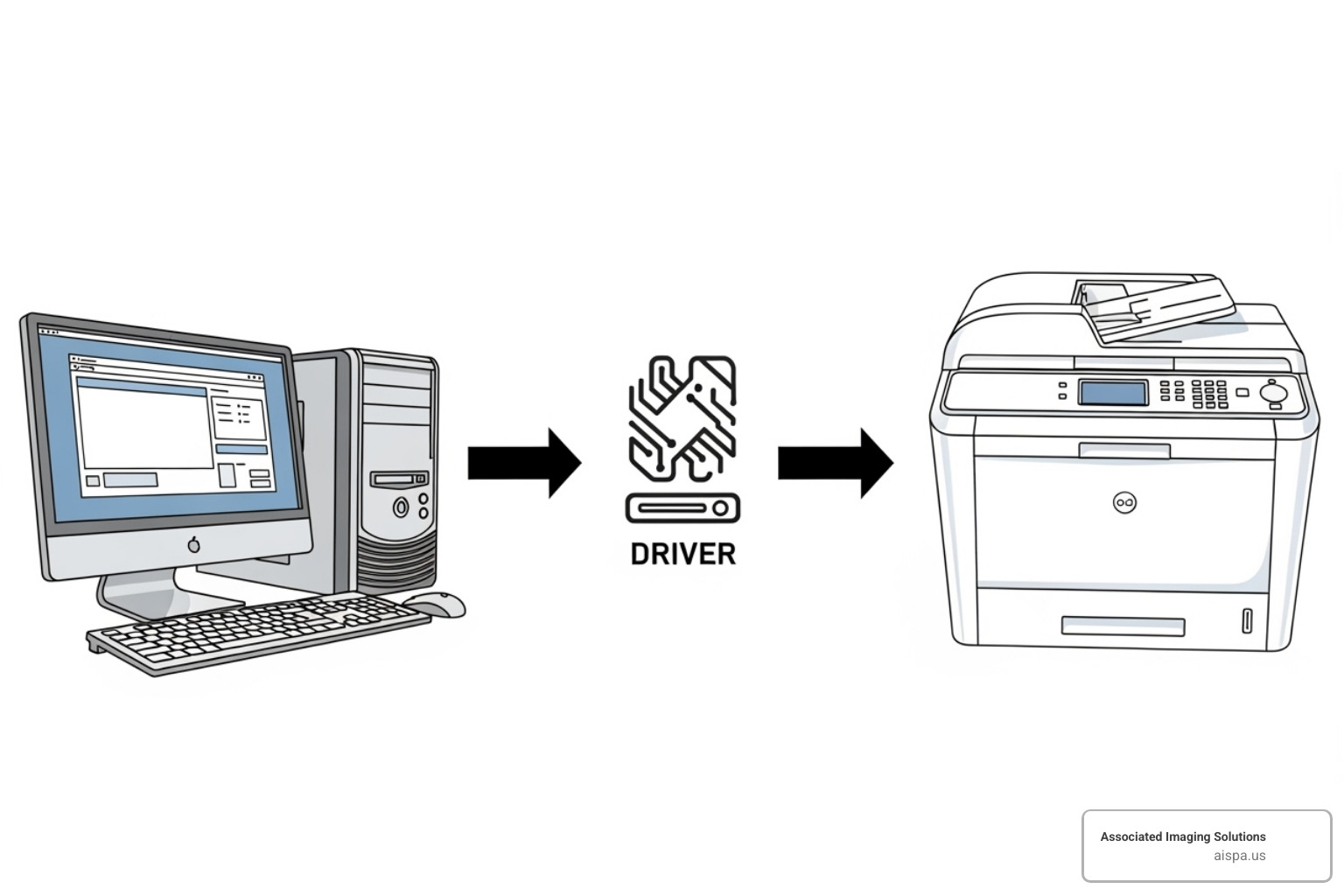
The driver converts the digital language of your computer into commands your specific printer model can execute. Without this translation, your printer wouldn’t work.
But print drivers do more than basic translation. They open up your printer’s full potential by managing finishing options like stapling documents, hole-punching for binders, or even booklet making. The driver also handles your print quality settings, allowing you to choose between crisp text for a presentation or ink-saving drafts for internal use. It translates all these preferences into the precise instructions your printer needs to deliver the perfect result.
For a deeper dive into the fundamentals, check out our guides: What is a Printer Driver? and How Do Printers Work? Printers and Their Technology.
Decoding the Different Types of Print Drivers
Print drivers are like different types of translators—some are fast for business documents, while others excel at complex graphics. Choosing the right one ensures smooth, professional results. The foundation of these drivers is Page Description Languages (PDLs), which describe how a printed page should look.
Understanding these categories helps prevent issues like blurry graphics or slow printing. For a technical deep-dive, Microsoft’s Printer driver design guide – Windows drivers covers the details.
PCL vs. PostScript (PS)
The two main driver types are PCL and PostScript. They’re like comparing a reliable sedan to a sports car—both work, but they excel in different areas.
PCL (Printer Control Language) drivers, developed by HP, are the workhorses for everyday business printing. They are device-dependent, letting the printer’s hardware do most of the processing. This makes them faster for text-heavy documents like reports and emails and more efficient with printer memory.
PostScript (PS) drivers, created by Adobe, are the perfectionists for graphics. They are device-independent, with the driver handling more rendering work before sending it to the printer. This results in superior quality for complex graphics, precise colors, and professional images, making them ideal for marketing materials.
Here’s how they stack up:
| Feature | PCL (Printer Control Language) | PostScript (PS) |
|---|---|---|
| Speed | Generally faster for text and simple graphics | Can be slower due to more complex rendering |
| Quality | Good for business documents, less precise for complex graphics | Excellent for high-resolution graphics, photos, and precise layouts |
| Compatibility | Widely supported by many laser printers, device-dependent | Industry standard for professional publishing, device-independent |
| Typical Use | Everyday office printing, spreadsheets, internal reports | Graphic design, marketing, photography, external publications |
The choice comes down to speed versus quality. For most daily office work, PCL is fast and efficient. For polished presentations, PostScript delivers professional quality.
Universal vs. Manufacturer-Specific Print Drivers
Universal print drivers are designed to work with a wide range of printer models, often across different brands. They are a huge benefit for IT management in offices with mixed printer fleets, as one driver can handle many devices. This simplifies setup and replacement, saving hours of troubleshooting time in busy Philadelphia offices. However, the trade-off is that universal drivers typically only provide basic printing functionality and may not support advanced features like stapling or specific color calibration.
Manufacturer-specific drivers are custom for a particular printer model. They provide full access to all features and advanced options, delivering optimal performance and quality. The downside is that managing a unique driver for each printer model can be complex in a diverse environment. If you need every feature your printer offers, a manufacturer driver is the best choice.
For businesses looking to streamline their printer management, concepts like printer pooling can work alongside your driver strategy to improve overall efficiency.
Windows and Mac/Linux Drivers
Your operating system also dictates the type of driver you use.
Windows offers two main driver architectures. Type 3 drivers are the traditional, robust model known for broad compatibility and stability. Type 4 drivers are a newer, more secure model with a smaller footprint, often paired with Print Support Apps (PSAs) for the user interface. While modern, some users find Type 4 drivers less reliable than the proven Type 3 model.
macOS and Linux use the Common UNIX Printing System (CUPS). CUPS acts as a standardized printing interface that works with PCL and PostScript drivers. This often makes printing more straightforward, as many drivers are built-in or easily found by the system.
Understanding these driver categories helps you make informed decisions. For more advanced strategies, learning about enabling printer pooling can further optimize your setup.
Your Step-by-Step Guide to Installing and Updating Drivers
Installing and updating print drivers correctly prevents major headaches. We’ve helped countless Philadelphia businesses resolve “print driver unavailable” errors that were easily avoidable with proper installation. The process is straightforward and will have your printer running smoothly in minutes.

How to Find and Download the Right Print Drivers
Using the correct driver is critical. Here’s how to get it right:
- Identify Your Printer Model: Find the specific model number on a sticker on your printer (e.g., “Sharp MX-3071”).
- Visit the Manufacturer’s Website: Go directly to the printer manufacturer’s official support or drivers page. Avoid third-party sites to prevent downloading malware or outdated software.
- Find Your Driver: Search for your model number and select your specific operating system (e.g., Windows 11, 64-bit). Most sites can auto-detect this for you.
- Download the Latest Version: Always download the most recent driver available to get the latest bug fixes, performance improvements, and features.
For our Sharp printer users, we’ve created detailed guides: Sharp Printer Drivers Downloading and Installing and Install Sharp Printer Driver. If you’re adding a new Sharp device, How to Add Sharp Printer to PC will walk you through the process.
Recommended Installation and Update Methods
Once you have the driver file, installation is simple. Here are the best methods:
- Manufacturer’s Installer: This is usually your best bet. Most drivers come as an executable file (.exe or .dmg). Just run the file and follow the on-screen instructions. These installers often include helpful utilities.
- Windows Update: When you connect a new printer, Windows often finds and installs a compatible driver automatically. These drivers are tested by Microsoft for stability.
- Add Printer Wizard: If automatic installation fails, use this manual option. In Windows, go to
Settings > Bluetooth & devices > Printers & scannersand click “Add device” to browse for the driver file you downloaded.
Don’t forget about firmware updates. While drivers manage communication, firmware controls the printer’s internal operations. Firmware updates can improve performance and security and are usually found on the same download page as your drivers.
Pro Tip: If you’re setting up a new printer or have upgraded your OS, always download a fresh driver from the manufacturer’s website. The disc that came in the box is likely outdated.
After installation, our guide on How to Set a Default Printer in Windows 11 can help streamline your workflow.
Troubleshooting Common Driver Disasters
Even with the right print drivers, issues can arise. Don’t worry—most are completely fixable. Let’s tackle the most common printing headaches and get your printer back on track.
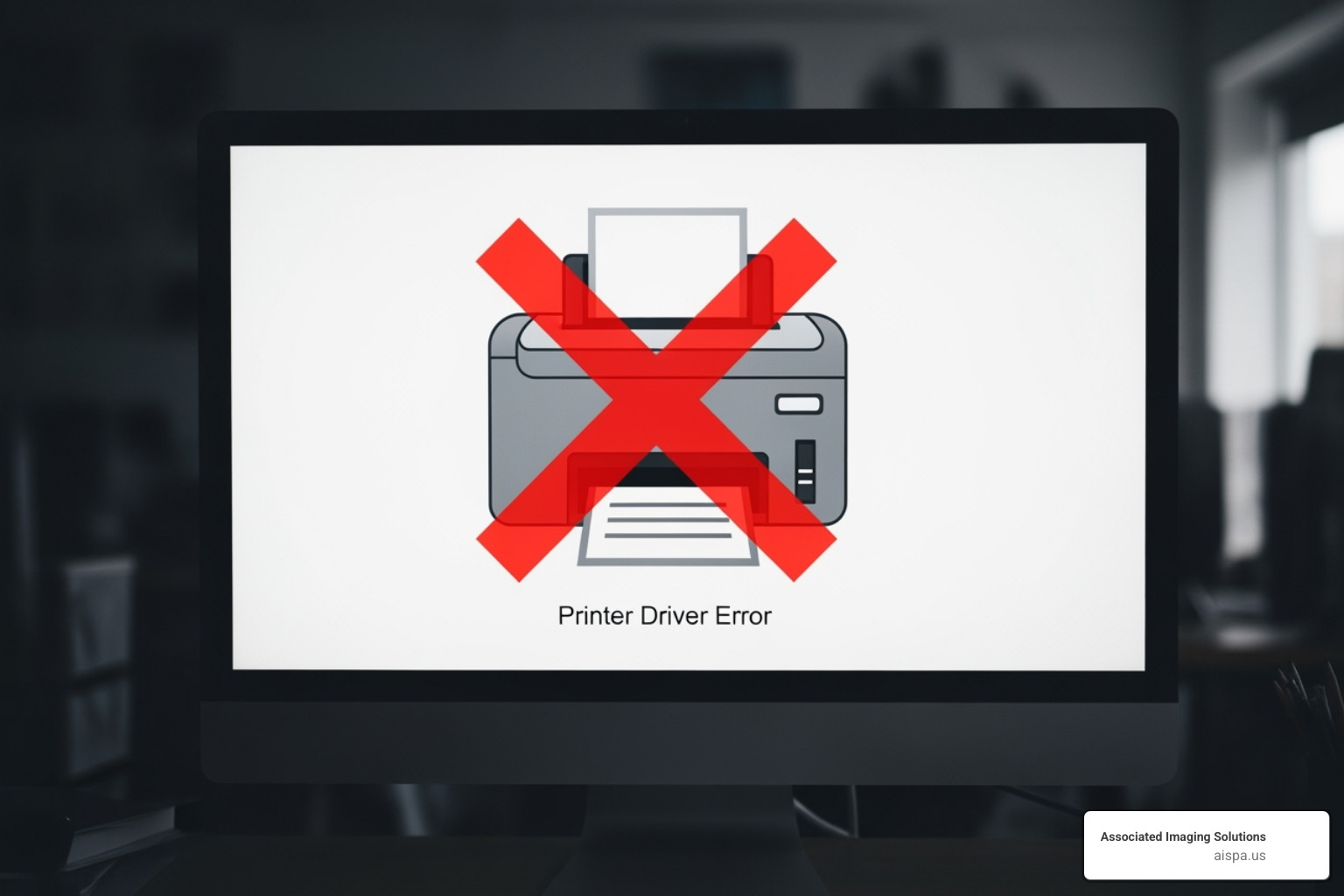
This common error means your computer can’t communicate with the printer. Here’s what to do:
- Check Compatibility: Ensure the driver matches your exact printer model, OS (e.g., Windows 11), and system architecture (32-bit or 64-bit).
- Reinstall the Driver: Completely uninstall the current driver and reinstall the latest version from the manufacturer’s website.
- Restart the Print Spooler: This service manages print jobs. In Windows, open “Services,” find “Print Spooler,” right-click, and select “Restart.”
- Update Your OS: Install the latest updates for Windows or macOS, as they often include important printing-related fixes.
- Check Connections: Verify physical connections. For USB printers, try a new port or cable. For network printers, confirm it’s on the network with a valid IP address.
Slow Printing or an Unresponsive Printer
If your printer is slow or not responding, try these steps:
- Restart Everything: Reboot your computer, printer, and router to clear temporary glitches.
- Clear the Print Queue: A stuck job can halt all printing. Open your printer’s queue from
Settings > Bluetooth & devices > Printers & scannersand cancel all documents. - Update Driver/Firmware: Outdated drivers or firmware can cause slowdowns. Check the manufacturer’s site for updates.
- Check Network Issues: For wireless printers, a weak Wi-Fi signal can cause delays. Move the printer closer to the router or use an Ethernet cable.
Incorrect Printouts: Garbled Text, Wrong Colors, or Missing Elements
When a printout looks wrong, it’s usually a communication breakdown. Try these fixes:
- Check Print Settings: In the print dialog, verify that settings for paper type, quality, and color are correct for your job.
- Use the Right Driver Type: For complex graphics, a PostScript (PS) driver usually gives better results than a PCL driver.
- Calibrate the Printer: Use the printer’s utility software to run a color calibration or print head cleaning cycle.
- Print a Test Page: Print a test page from the printer’s settings. If it looks fine, the issue is likely with the application or document you’re trying to print.
The Hidden Dangers of Outdated Print Drivers
Using an old driver if your printer “mostly” works can seem harmless, but it poses several risks:
- Compatibility Problems: Older drivers may not work with new OS updates, causing errors or crashes.
- Security Vulnerabilities: Old drivers can have security flaws that put your network at risk.
- Reduced Performance: You might miss out on performance optimizations, leading to slower printing.
- Lack of Advanced Features: You won’t be able to access new functionalities added in later driver versions.
If you’re constantly battling printer issues, it might be time for professional help. We have more resources on Printer Repair and Maintenance and our Printer Repair Service Top 5 Proven Fixes. For businesses in the Philadelphia area, our team at Associated Imaging Solutions is ready to help.
Frequently Asked Questions about Print Drivers
We get a lot of questions about print drivers from our Philadelphia-area clients. Here are answers to the most common ones.
What's the difference between a Type 3 and Type 4 print driver in Windows?
Type 3 drivers are the traditional model, running in your system's core (kernel-mode) for broad compatibility and proven stability. Type 4 drivers are Microsoft's modern approach, designed with a smaller footprint and better security isolation. They often use separate Print Support Apps (PSAs) for the user interface. While Type 4 drivers are newer, many users find Type 3 drivers to be more reliable in practice.
Can I use a universal print driver for any printer brand?
Yes, universal print drivers are designed for broad compatibility across many brands and models, which simplifies IT management. However, they typically only support basic printing functions. You may lose access to advanced features like stapling or hole-punching. For full functionality, a manufacturer-specific driver is best. Always check the driver's supported product list.
How often should I update my printer drivers?
You don't need to update constantly. A good rule is "if it ain't broke, don't fix it." However, you should update your print drivers in three key situations:
When you upgrade your operating system.
When you experience printing problems (like errors or slow performance).
When a new driver offers a security patch or a feature you need.
Otherwise, if your printer is working well, there's no pressure to update. When problems do arise, updating the driver should be one of your first troubleshooting steps.
Conclusion: Keep Your Printing on the Right Track
Print drivers are the essential, unsung heroes of office technology, ensuring your digital work translates perfectly to paper. Understanding the difference between PCL and PostScript, or universal and manufacturer-specific drivers, is key to a smooth printing experience.
The core principles are simple: always download drivers from official manufacturer websites, update them when you upgrade your OS or encounter problems, and don’t hesitate to reinstall a driver to fix an issue. Proactive driver management open ups your printer’s full potential, improves security, and saves you from frustrating errors.
For businesses in the Philadelphia area looking to streamline their entire print environment beyond just managing individual print drivers, the experts at Associated Imaging Solutions offer comprehensive Managed Print Services (MPS) to optimize costs and efficiency. We handle the technical headaches so you can focus on what matters most—running your business.
When your printing works seamlessly, your whole workflow improves. Learn more about our advanced Sharp copiers and printers and find how we can help your business print smarter, not harder.
Related Posts
— What Is Printer Pooling? Understanding the Basics and Benefits
— The Lifespan of Printers: How Long Do Printers Last