

Scanning to the Cloud from a Sharp Copier: Email, Network Folders and Cloud Storage

November 18, 2026
 0 views
 0 comments
Learn how to scan to email, a network folder or cloud storage from a Sharp copier, plus searchable PDFs, shortcuts and security tips for your office.
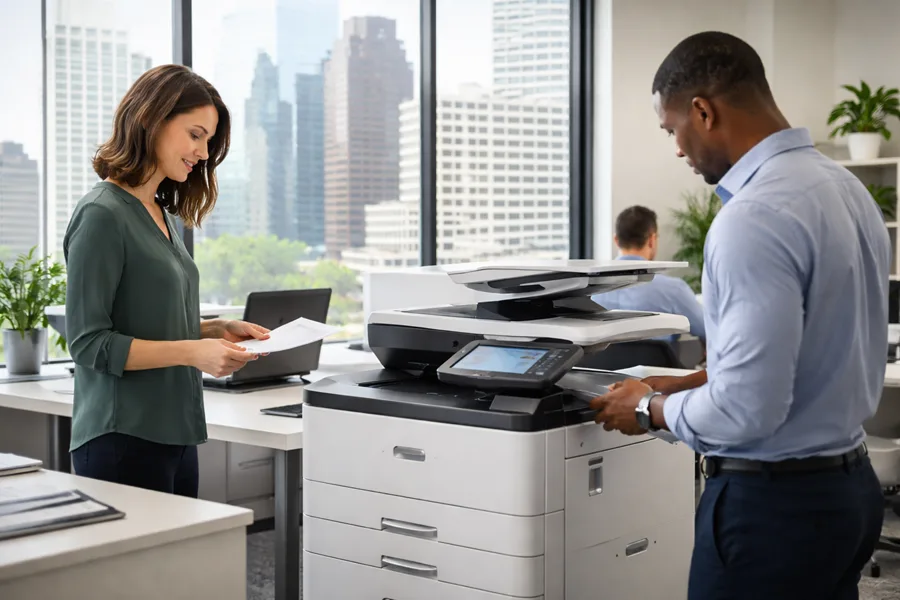
Most offices bought a copier to make copies. Today, a lot of the value comes from what happens after you press Scan. A paper contract, a signed form or a stack of invoices can become a digital file in your inbox, on a shared drive or in cloud storage in a few steps.
This guide explains the main ways a Sharp multifunction device can send scans where your team needs them. We cover scan to email, scan to a network folder and scan to cloud storage. We also cover searchable PDFs, address books, one touch shortcuts, security and when to call your dealer for help.
One note before we start. Features and menus vary by model, software version and how the device was set up. Use this as a general guide, and check your own device or ask us about the exact options.
Why scan from the copier at all?
Scanning at the copier saves a trip to a desktop scanner and cuts down on paper that gets lost or misfiled. It also helps teams that work in different rooms, different buildings or from home.
A few common uses:
- Sending a signed document to a customer or vendor
- Saving invoices and receipts to an accounting folder
- Storing HR forms in a controlled location
- Sharing meeting notes or whiteboard pages with a remote team
- Turning old paper files into digital records
The right destination depends on who needs the file and how long you need to keep it.
Three places a scan can go
Scan to email
Scan to email is the simplest option. You place the page on the glass or in the feeder, enter an address, and the device sends the file as an attachment.
It works well for one time sends, such as a signed form going to a customer. Here are a few tips:
- Use the device address book so staff do not type addresses by hand
- Choose PDF for documents and JPEG only for photos
- Scan text pages in black and white to keep files small
- Lower the resolution if attachments get rejected for size
Most email systems limit how large an attachment can be. If a long color scan bounces, try a lower resolution or split it into smaller files. For large jobs, a shared folder or a cloud link is usually a better choice than an attachment.
Scan to email also needs the device to connect to your mail system. That setup is usually done once by your IT contact or your dealer, and it may need a dedicated account or specific security settings.
Scan to a shared network folder
Scan to a network folder sends the file straight to a folder on a server or shared drive in your office. Your team can open it from their own computers without anyone emailing it around.
This is a strong choice for steady, repeat work. An accounts payable clerk can scan invoices into one folder. An HR coordinator can scan new hire forms into a restricted folder. A front desk can scan visitor forms into a daily folder.
To make it work smoothly:
- Create clear folder names, such as Invoices, HR Forms or Client Intake
- Set folder permissions so only the right people can open each one
- Give the device its own account with access to only the folders it needs
- Agree on a file naming style so documents are easy to find later
Sharp devices commonly support sending to a network folder, but the device needs the correct folder path and login details. If your network changes, such as a new server or a new password policy, the scan settings may need an update. If scans suddenly stop arriving, check this first.
Scan to cloud storage
Many offices now keep files in cloud storage services so staff can reach them from anywhere. Depending on the device and its software, a Sharp multifunction device may be able to send scans to those services directly. In other cases, the scan goes to a network folder or email address that syncs to the cloud.
Either way, the goal is the same. A paper page becomes a digital file that the right people can open from their laptop or phone.
Before you scan to the cloud, decide a few things:
- Which cloud service your business has approved
- Who owns the account the device will use
- Which folders the device may write to
- How long you must keep the files
The last point matters. Some records have retention rules, and those rules differ by industry. Confirm them with your attorney, accountant or compliance officer rather than guessing.
Make scans searchable
A plain scan is a picture of a page. You can read it, but your computer cannot search the words inside it. A searchable PDF adds a layer of text that the computer can read. That means you can search a folder for a customer name, a purchase order number or a phrase from a contract.
This feature is often called OCR, short for optical character recognition. Many Sharp multifunction devices offer searchable PDF output, though availability depends on the model and its software. Look for it in the file format options on the scan screen.
A few tips for better results:
- Use clean originals when you can
- Place pages straight on the glass or in the feeder
- Choose a resolution that keeps small print readable
- Spot check a few files after setup to confirm the text is searchable
Searchable files are a big help when you build a bigger filing system. If you are thinking about that, our post on document management in Philadelphia explains how scanning fits into organizing and finding your records.
Address books and one touch shortcuts
Typing addresses and folder paths on a small screen slows everyone down and leads to mistakes. Two features fix that.
Address books
The device address book stores email addresses and, on many setups, network folder destinations. Staff pick a name instead of typing. Some devices can also connect to your company directory, so the list stays current as people join and leave. Whether that is available depends on your setup.
Keep the address book tidy. Remove old contacts, use clear names and group related contacts together.
One touch shortcuts
A one touch shortcut saves a full set of scan choices under a single button on the home screen. It can include the destination, file type, color setting, resolution and sides to scan.
Some ideas for shortcuts:
- Scan to Accounting: black and white, searchable PDF, saved to the invoices folder
- Scan to Me: sends the file to the signed in user’s own email
- Scan to HR: two sided, saved to a restricted folder
- Scan Photo: color, higher resolution, JPEG
Shortcuts help new employees too. They do not need to learn every setting. They press the button that matches the job.
Security tips for scanning
Scanning makes documents easy to move, which is good for work and a risk if the setup is careless. These are general habits that help most offices:
- Require a login at the device so scans and address books are not open to anyone walking by
- Use strong, unique passwords for the accounts the device uses
- Give the device access only to the folders and services it needs
- Remove former employees from the address book and from device access
- Do not leave sensitive pages on the glass or in the output tray
- Review who can see each destination folder on a regular schedule
Some documents, such as medical, legal or financial records, carry extra rules. Those rules vary, and a copier setup alone does not make an office compliant with any of them. Talk with your attorney, accountant or compliance officer about what applies to you. For a wider look at protecting information on your devices, read about print security.
Which method should you choose?
Many offices use all three, depending on the job.
- Choose email for quick, one time sends
- Choose a network folder for repeat work that stays inside the office
- Choose cloud storage when people need access from different places
If you are unsure, start with the job. Ask who needs the file, how often, and for how long. The answers usually point to the right destination.
When to ask your dealer to set it up
You can often add a few address book entries yourself. Some parts are better handled by a professional, especially when they touch your network, your mail system or your accounts.
Consider calling your dealer when:
- You are setting up scan to email or a network folder for the first time
- Scans stop arriving after a password, server or network change
- You want scan to cloud storage and are not sure what your device supports
- You need searchable PDF output turned on and tested
- You want shortcuts built for several departments
- You are adding a new device and want it to match your existing setup
A good setup includes more than turning features on. It means testing each destination, checking permissions and showing your staff how to use the shortcuts.
Get your scan workflow working
If your team still walks paper from desk to desk, or scans keep landing in the wrong place, we can help. Associated Imaging Solutions is a Sharp authorized business partner serving Philadelphia and the Delaware Valley from our office in Warminster, PA. Tell us how your office works, and we will recommend a setup that fits your devices and your people. Please contact us or call Associated Imaging Solutions at (215) 999-8445.
FAQ
Frequently Asked Questions
Can a Sharp copier scan directly to cloud storage?
Many Sharp multifunction devices can send scans to popular cloud storage services, but the options depend on the model, its software and how it is set up. Some offices scan to a network folder or email instead. We can review your device and your workflow and tell you which options fit.
Why does scan to email fail with large files?
Most email systems limit attachment size, so a long color scan can be rejected. Try scanning at a lower resolution, using black and white for text pages, or splitting the job into smaller files. For very large jobs, a network folder or cloud link is a better fit than an attachment.
What is a searchable PDF?
A searchable PDF looks like the original page but also contains text the computer can read. That lets you search for a name, invoice number or phrase inside the file. It is often called OCR, short for optical character recognition. Check whether your device and settings support it.
Is scanning to the cloud safe for sensitive documents?
It can be when set up with care, using strong passwords, limited access and secure connections. Rules differ for legal, medical and financial records, so confirm requirements with your attorney, accountant or compliance officer before sending sensitive files to any storage service. We can help with the device side of the setup.
Get a Quote From Associated Imaging Solutions
Providing solutions to make businesses run more productively, more reliably, and more efficiently.
Or call (215) 999-8445. You can also contact us online.
Related Posts

— Copiers for Medical and Dental Offices: Privacy Features That Matter

— What a Copier Service Contract Covers in Pennsylvania (and What It Usually Doesn’t)